
How to Add a 'Recently Viewed Products' Section to Shopify (2026)
Boost Conversion with a "Recently Viewed Products" Section
Have you ever browsed an online store, looked at a few items, and then wanted to go back to something you liked but couldn't find it again? Frustrating, right?
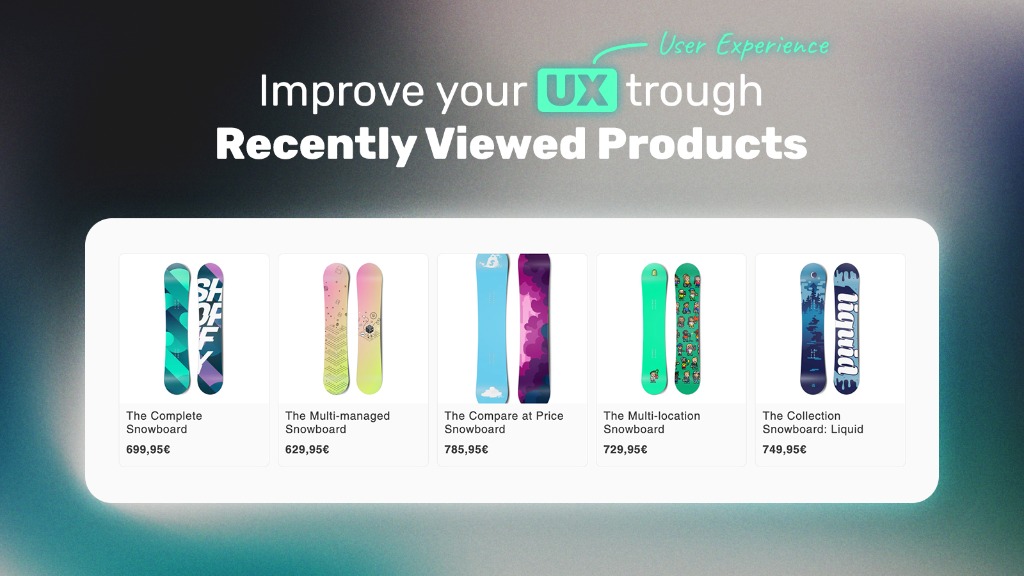
A Recently Viewed Products section solves this problem. It acts like a personal history for your customers, reminding them of items they showed interest in. This simple feature can significantly improve user experience and boost conversion rates by reducing friction in the buying journey.
In this guide, I will show you two ways to add this feature to your Shopify store:
- The Easy Way: Using our specialized app (done in 2 minutes).
- The Custom Way: Coding it yourself (requires HTML, JS, CSS, and Liquid knowledge).
Method 1: The Easy Way (Recommended)
If you don't want to mess with code or worry about theme updates breaking your features, our Recently Viewed Products app is the perfect solution. It's built to be lightweight, customizable, and works with any theme.
Recently Viewed Products
🚀 Install & Ready in 2 Minutes
No coding required. Customizable design. Fast loading.
Get the App for FreeWhy use the App?
- No Coding Risk: You won't break your theme.
- Auto-Styling: Automatically adapts to your theme's fonts and colors.
- Performance: Optimized to not slow down your store.
- Analytics: See which products are revisited most often.
Method 2: The Custom Way (For Developers)
If you prefer to build it yourself and have complete control over the code, here is a step-by-step guide. This approach uses Liquid to output product data directly in your HTML, and JavaScript to save and retrieve products from localStorage – no API calls required.
Warning for Non-Developers
This method requires editing your theme code. If you are not comfortable with HTML, CSS, Javascript, and Liquid, we strongly recommend using Method 1 to avoid breaking your site layout.
Step 1: Output Product Data with Liquid
First, we need to make the current product's information available to JavaScript. Add this snippet to your product.liquid or main-product.liquid section. Liquid will render the product data as data attributes on a hidden element:
{% comment %} Hidden element that stores current product data for JavaScript {% endcomment %}
<div id="current-product-data"
data-product-url="{{ product.url }}"
data-product-title="{{ product.title | escape }}"
data-product-image="{{ product.featured_image | image_url: width: 400 }}"
data-product-price="{{ product.price | money }}"
data-product-handle="{{ product.handle }}"
style="display: none;">
</div>
Step 2: Save Products to LocalStorage with JavaScript
Now create a JavaScript file that reads the product data from the DOM and saves it to localStorage. Add this script to your theme's assets folder and include it on product pages:
(function() {
const LOCAL_STORAGE_KEY = 'recently_viewed_products';
const MAX_PRODUCTS = 10;

// Save current product to localStorage
function saveCurrentProduct() {
  const productData = document.getElementById('current-product-data');
  if (!productData) return;

  const product = {
    url: productData.dataset.productUrl,
    title: productData.dataset.productTitle,
    image: productData.dataset.productImage,
    price: productData.dataset.productPrice,
    handle: productData.dataset.productHandle
  };

  // Don't save if missing required data
  if (!product.url || !product.title) return;

  let viewedProducts = JSON.parse(localStorage.getItem(LOCAL_STORAGE_KEY) || '[]');

  // Remove duplicate (if product was viewed before)
  viewedProducts = viewedProducts.filter(p => p.handle !== product.handle);

  // Add current product to the beginning
  viewedProducts.unshift(product);

  // Keep only the last MAX_PRODUCTS
  viewedProducts = viewedProducts.slice(0, MAX_PRODUCTS);

  localStorage.setItem(LOCAL_STORAGE_KEY, JSON.stringify(viewedProducts));
}

// Run when DOM is ready
if (document.readyState === 'loading') {
  document.addEventListener('DOMContentLoaded', saveCurrentProduct);
} else {
  saveCurrentProduct();
}
})();
Step 3: Display Recently Viewed Products
Create a section that displays the saved products. The key advantage of this approach is that all product data is already stored in localStorage – no API calls needed!
<div id="recently-viewed-section" class="recently-viewed-section" style="display: none;">
<div class="page-width">
  <h2 class="recently-viewed-title">Recently Viewed</h2>
  <div id="recently-viewed-grid" class="recently-viewed-grid">
    <!-- Products will be inserted here by JavaScript -->
  </div>
</div>
</div>

<script>
(function() {
const LOCAL_STORAGE_KEY = 'recently_viewed_products';

function displayRecentlyViewed() {
  const section = document.getElementById('recently-viewed-section');
  const grid = document.getElementById('recently-viewed-grid');

  if (!section || !grid) return;

  const products = JSON.parse(localStorage.getItem(LOCAL_STORAGE_KEY) || '[]');

  // Get current product handle to exclude from display
  const currentProductData = document.getElementById('current-product-data');
  const currentHandle = currentProductData ? currentProductData.dataset.productHandle : null;

  // Filter out current product
  const filteredProducts = products.filter(p => p.handle !== currentHandle);

  if (filteredProducts.length === 0) {
    section.style.display = 'none';
    return;
  }

  // Build HTML for each product
  const html = filteredProducts.map(product => `
    <a href="${product.url}" class="rv-product-card">
      <div class="rv-product-image">
        <img src="${product.image}" alt="${product.title}" loading="lazy">
      </div>
      <h3 class="rv-product-title">${product.title}</h3>
      <p class="rv-product-price">${product.price}</p>
    </a>
  `).join('');

  grid.innerHTML = html;
  section.style.display = 'block';
}

// Run when DOM is ready
if (document.readyState === 'loading') {
  document.addEventListener('DOMContentLoaded', displayRecentlyViewed);
} else {
  displayRecentlyViewed();
}
})();
</script>
Step 4: Add the Styling
Add this CSS to your theme's stylesheet or create a new CSS file:
.recently-viewed-section {
padding: 40px 0;
}

.recently-viewed-title {
text-align: center;
margin-bottom: 24px;
font-size: 1.5rem;
}

.recently-viewed-grid {
display: grid;
grid-template-columns: repeat(auto-fill, minmax(200px, 1fr));
gap: 20px;
}

.rv-product-card {
display: block;
text-decoration: none;
color: inherit;
border: 1px solid #eee;
border-radius: 8px;
padding: 12px;
text-align: center;
transition: box-shadow 0.2s ease;
}

.rv-product-card:hover {
box-shadow: 0 4px 12px rgba(0, 0, 0, 0.1);
}

.rv-product-image img {
max-width: 100%;
height: auto;
border-radius: 4px;
}

.rv-product-title {
font-size: 0.95rem;
margin: 12px 0 8px;
line-height: 1.3;
}

.rv-product-price {
font-weight: 600;
margin: 0;
}
Step 5: Include the Section in Your Theme
Finally, add the recently viewed section to your product template. Open templates/product.json (or product.liquid) and include the section:
{
"sections": {
  "main": {
    "type": "main-product"
  },
  "recently-viewed": {
    "type": "recently-viewed"
  }
},
"order": ["main", "recently-viewed"]
}
Summary
Implementing a "Recently Viewed" section manually gives you full control but requires significant effort:
- State Management: Handling Local Storage.
- Data Fetching: handling API limits and loading states.
- Styling: Writing responsive CSS.
- Maintenance: Fixing bugs when themes update.
If you just want the result without the headache, try our app. It's free to try and takes less time to install than reading this article!